
*Make sure, you have an active 'Zullu' account.
If you don't have, please create an account: https://zullu.tv/billing/signup
(Paid Third party iptv apps)
However, if you wish to access our services through a third-party IPTV app, please note that separate payments are required for them.
We do recommend the following four apps for optimal performance:
- Smart IPTV app
- Smart One IPTV app
- Net IPTV app
- IPTV Extreme app
- iptv.in.net
- smarttv.club
In case you encounter any difficulties during the IPTV app installation process, we suggest seeking assistance from a technical expert in your vicinity.
Smart IPTV app / SIPTV app
- Install the Smart IPTV app
- Open the app and it will show your MAC address/ID on the first screen.
- Take a visible Photo/Screenshot of that screen and then send it to us
- One of our agents will configure the app for you.
- Make sure you mentioned in the email that you have got the MAC address from Smart IPTV. Please note that your MAC Address/ID should look like 00:AC:09:BB:CA:09
Smart One IPTV app

- Install Smart One IPTV app
- Open the app and it will show you your MAC address/ID on the first screen.
- Take a visible Photo/Screenshot of that screen and then send it to us
- One of our agents will configure the app for you.
- Make sure you mentioned in the email that you have gone to the MAC address from Smart One IPTV. Please note that your MAC Address/ID should look like 00:AC:09:BB:CA:09
Net IPTV app
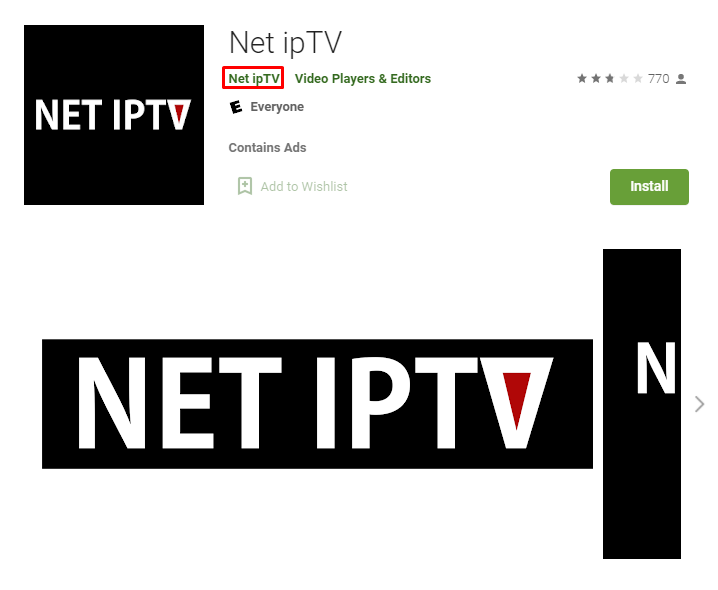
- Please install the Net IPTV app
- Open the app and it will show your MAC address/ID on the first screen.
- Take a visible Photo/Screenshot of that screen and then send it to us
- One of our agents will configure the app for you.
- Make sure you mentioned in the email that you have got the MAC address from Net IPTV. Please note that your MAC Address/ID should look like 00:AC:09:BB:CA:09
IPTV Extreme app
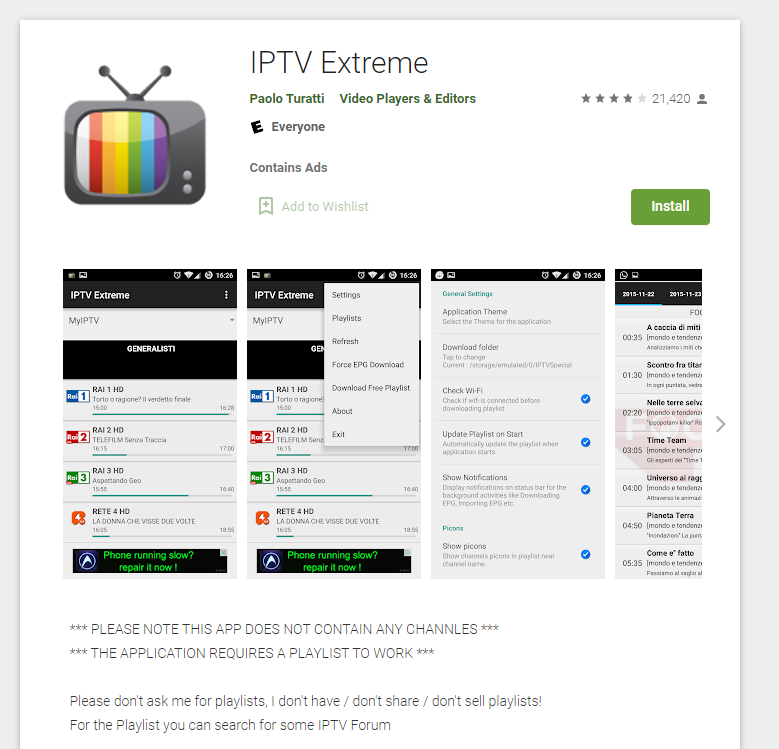
- Install the IPTV Extreme app
- Open the app and it will show you your MAC address/ID on the first screen.
- Take a visible Photo/Screenshot of that screen and then send it to us
- One of our agents will configure the app for you.
- Make sure you mentioned in the email that you have gone to the MAC address from the IPTV Extreme app. Please note that your MAC Address/ID should look like 00:AC:09:BB:CA:09
iptv.in.net


- Install the iptv.in.net
- Open the app and it will show you your MAC address and Device ID on the first screen.
- Take a visible Photo/Screenshot of that screen and then send it to support@zullu.tv
- One of our agents will configure the app for you.
- Make sure you mentioned in the email that you have gone to the MAC address from the iptv.in.net. Please note that your MAC Address/ID should look like 00:AC:09:BB:CA:09 and 225566
smarttv.club


- Install the smarttv.club
- Open the app and it will show you your Device ID on the first screen.
- Take a visible Photo/Screenshot of that screen and then send it to support@zullu.tv
- One of our agents will configure the app for you.
- Make sure you mentioned in the email that you have gone to the MAC address from the IPTV Extreme app. Please note that your Device ID should look like f822-bb22-ee22-dd66
Third Party Free IPTV apps;
We would like to inform you that installing and configuring our service is a straightforward process that you can do yourself. It's easy and simple, and we have provided the necessary details below to help you get started:
- Please install any of the following the IPTV app
- Open it, once installed
- Go the the app home page
- Choose the option 'Load your M3U URL playlist'
- Add the following M3U URL playlist: https://zullu.tv/app/YourRegisteredZullu.tvEmail
- Playlist name: Zullu
- Once you have added the playlist and configured it correctly, our service should work instantly.
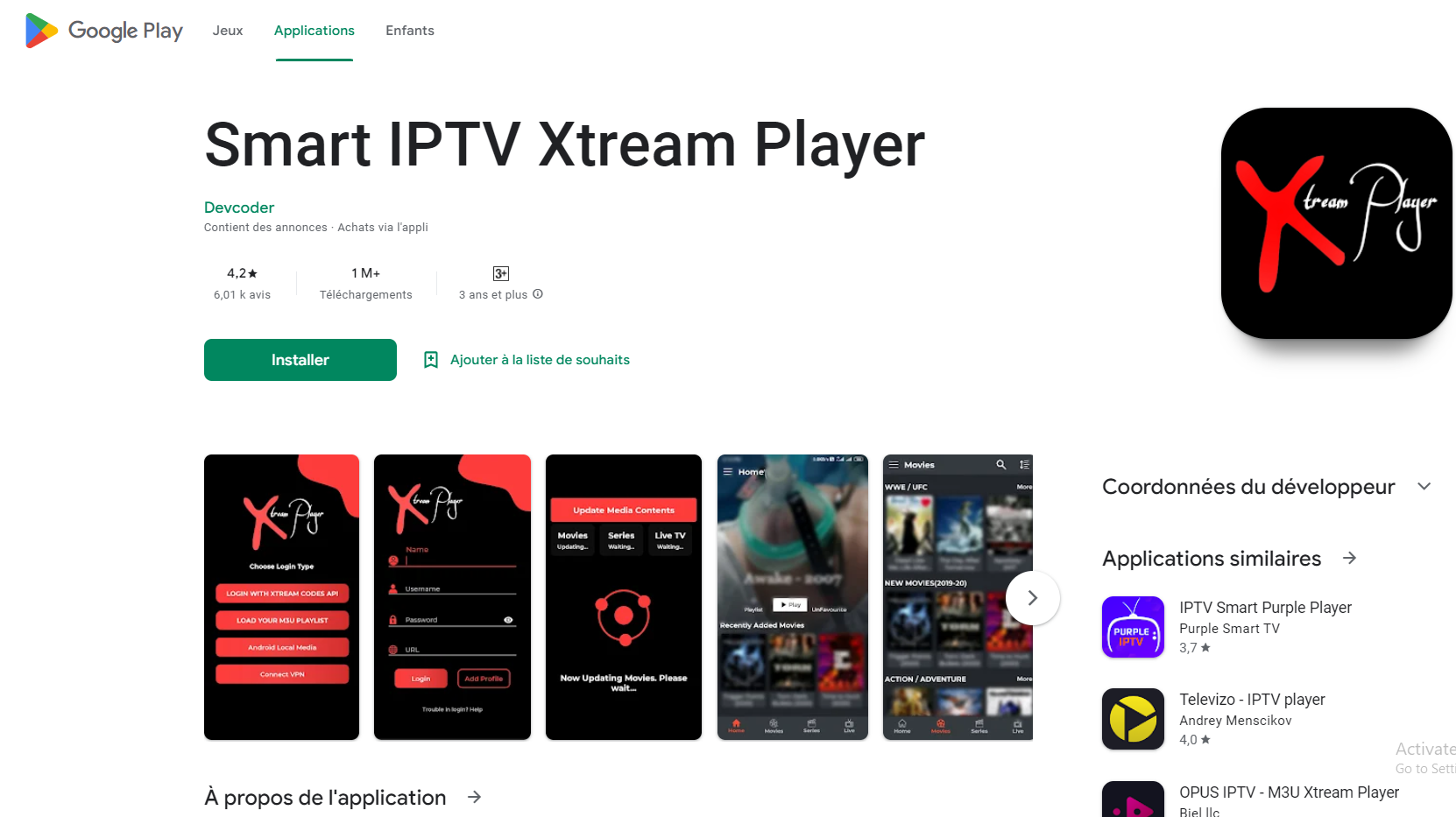
 Can't find what you're looking for?